Automating FileMaker Data Imports with Scripts
How experienced FileMaker developers build scripted data imports that are repeatable, reviewable, and safer to run in production.
Automating a FileMaker data import is not the same thing as clicking through the import dialog faster. A real import script has to protect record identity, relationships, validation rules, audit history, and the developer who may need to explain the result two weeks later.
For FileMaker developers, the dangerous part is rarely the Import Records step by itself. The dangerous part is everything around it: source data that changed since the last test, reused serial numbers, child records that no longer have valid parents, unstored calculations that hide bad mappings, and a production window where everyone wants the result to be both fast and reversible.
This is where FMDojo should be part of the workflow. Before writing the import scripts, import or connect the file context in FMDojo, review the schema in Snapshots, use AI Chat with that context to challenge the import plan, and keep the final runbook tied to the approval and release notes. The goal is not to let AI "do the import." The goal is to give an expert FileMaker developer better evidence before they touch production data.
This post is about record-level imports: staging rows, validating source data, matching target records, and writing creates or updates safely. It is not about moving a FileMaker Server, SSL certificates, DNS, schedules, or a full production cutover.
Map the source and target before writing scripts
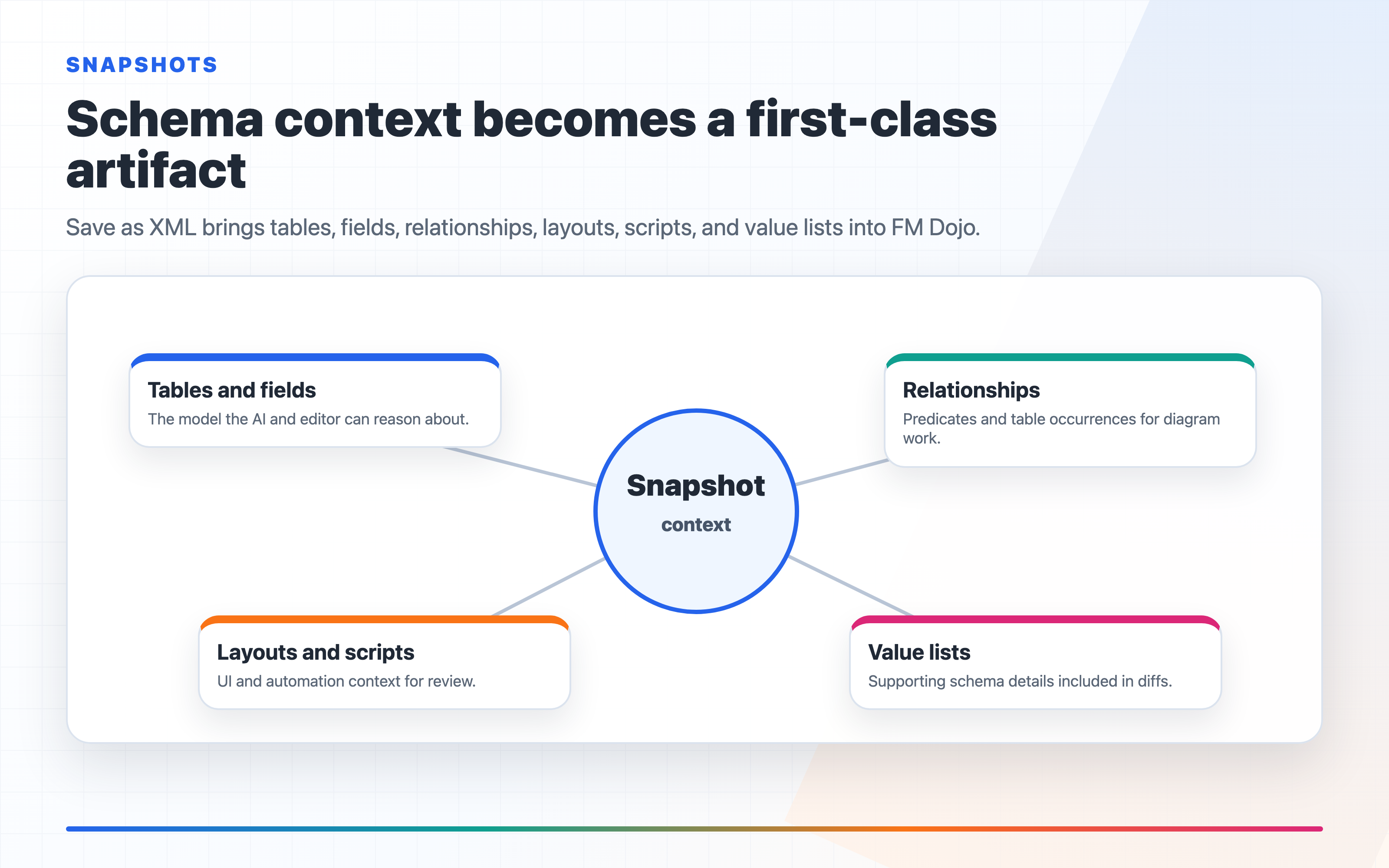
Start in FMDojo Snapshots with a current Save as XML export or LiveConnect-backed context for the files involved. The point is to see the real tables, fields, keys, relationships, scripts, and layout context before you invent an import path from memory.
For each imported entity, write the mapping like a developer handoff, not like a loose spreadsheet:
Entity: Contacts
Source: LegacyContacts
Target: Contact
Source key: LegacyContacts::ContactID
Target key: Contact::zLegacyContactID
Parent dependency: Account via LegacyAccounts::AccountID -> Account::zLegacyAccountID
Create rule: Create when no Contact::zLegacyContactID match exists
Update rule: Update only fields owned by the import
Skip rule: LegacyContacts::Status = "Deleted"
Stop rule: active contact with no Account match
In FMDojo, open the Snapshot and check the table occurrence names and key fields against the actual relationship graph. Then ask AI Chat something specific:
Using this FileMaker schema context, review my Contacts import mapping.
Find parent-child risks, missing key fields, validation conflicts, and any
place where a script rerun could create duplicates.
That prompt is useful because it is grounded in the file context. A generic "write an import script" prompt is not.
Use staging tables, not direct imports into production tables
For production imports, I normally do not import directly into the final table first. I import into a staging table, validate the staged rows, produce a reviewable plan, and only then write to the target table.
A practical staging table for a Contacts import might include:
ContactImportStaging
  BatchID
  SourceContactID
  SourceAccountID
  TargetContactID
  TargetAccountID
  RawName
  RawEmail
  NormalizedEmail
  PlannedAction
  ValidationStatus
  ValidationError
  ImportStatus
  LastFileMakerError
  ImportedAt
That table gives you a place to answer the questions that matter before the target data changes:
- Which rows will be created?
- Which rows will update an existing target record?
- Which rows are blocked because the parent Account is missing?
- Which rows will be skipped intentionally?
- Can the script be stopped and safely resumed?
This is the difference between an import dialog and a controlled import workflow.
Build the controller as a runbook
Your top-level FileMaker script should read like a runbook. It should call smaller scripts that each have one job and return a meaningful result.
For example:
IMPORT - Contacts - Controller
  1. Require import approval and backup confirmation
  2. Create Batch record
  3. Clear prior staging rows for this BatchID
  4. Import LegacyContacts into ContactImportStaging
  5. Normalize staged values
  6. Resolve Account and Contact target keys
  7. Validate staged rows
  8. Stop if blocking errors exist
  9. Write Contact creates
  10. Write Contact updates
  11. Reconcile counts
  12. Mark Batch complete
Each child script should use Set Error Capture [ On ], write its own phase result, and return a simple JSON result to the controller:
{
  "phase": "Validate staged contacts",
  "status": "blocked",
  "blockingErrors": 14,
  "warningCount": 27
}
In FileMaker, this keeps the controller simple. In FMDojo, paste the script outline into AI Chat and ask for a review against the schema context:
Review this FileMaker import controller for rerun safety. Assume the script
may stop after target creates but before target updates. What fields or phase
guards are missing?
That is the kind of review another senior developer would do before a production import window.
Make the import idempotent
If an import cannot be rerun safely, it is not ready for a production window.
For each staged row, calculate a PlannedAction before changing target records:
Create
Update
Skip
Error
Then store the target primary key back on the staging row before writing field values. Do not rely on names, email addresses, or found-set position. Use stable legacy IDs when they exist, and create review queues when they do not.
The core loop for target writes should be boring:
Go to Layout [ ContactImportStaging ]
Enter Find Mode [ Pause: Off ]
Set Field [ ContactImportStaging::BatchID ; $batchId ]
Set Field [ ContactImportStaging::PlannedAction ; "Create" ]
Set Field [ ContactImportStaging::ImportStatus ; "Ready" ]
Perform Find

Loop
  Exit Loop If [ Get ( FoundCount ) = 0 or Get ( RecordNumber ) > Get ( FoundCount ) ]
  Set Variable [ $sourceId ; ContactImportStaging::SourceContactID ]

  New Window [ Style: Document ; Name: "ImportWrite" ]
  Go to Layout [ Contact ]
  New Record/Request
  Set Field [ Contact::zLegacyContactID ; $sourceId ]
  Set Field [ Contact::Name ; ContactImportStaging::RawName ]
  Set Field [ Contact::Email ; ContactImportStaging::NormalizedEmail ]
  Commit Records/Requests [ With dialog: Off ]
  Set Variable [ $error ; Get ( LastError ) ]
  Close Window [ Current Window ]

  Perform Script [ "IMPORT - Log Row Result" ; Parameter: JSONSetElement ( "{}" ;
    [ "sourceId" ; $sourceId ; JSONString ] ;
    [ "error" ; $error ; JSONNumber ]
  ) ]

  Go to Record/Request/Page [ Next ; Exit after last: On ]
End Loop
The exact script steps will differ by solution, but the pattern should not: find a controlled set, write one row at a time, commit deliberately, capture Get ( LastError ), and record what happened.
Review relationships before the first write
Most bad imports are relationship failures wearing a field-mapping costume. A Contact import that does not resolve Account correctly will look fine until a portal, report, script, or integration depends on that relationship.
Before the write phase, produce relationship checks from staging:
- Every child row has a resolved parent target key.
- Every join table row has both sides resolved.
- No source key maps to more than one target key.
- No target key will be overwritten by multiple source rows.
- Required relationship predicates are populated, including tenant, organization, or active flags.
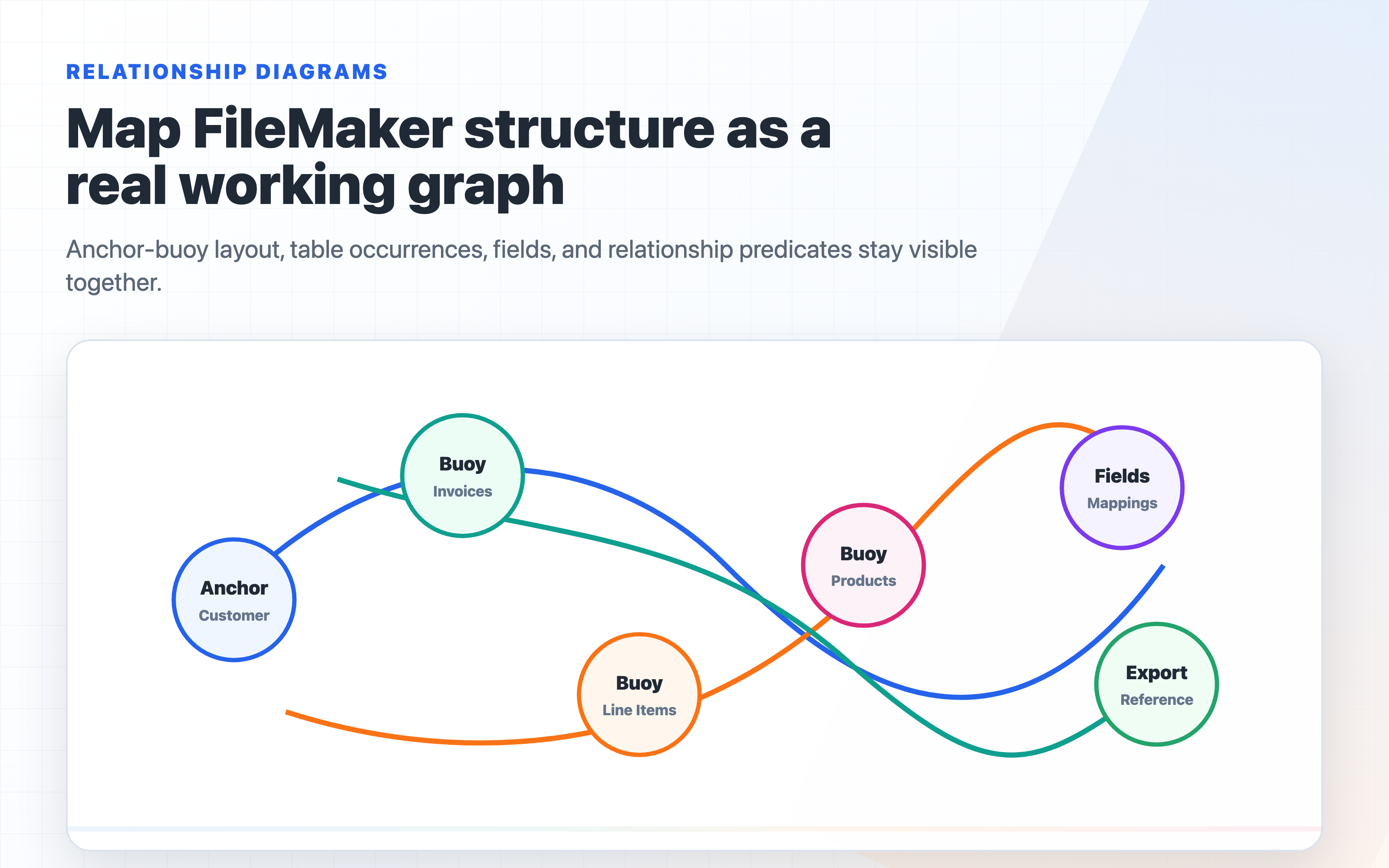
This is a good place to use FMDojo with the Snapshot relationship context. Ask:
Given this FileMaker relationship graph, which target tables should be loaded
before Contacts, and what relationship predicates could make a staged match look
valid in one table occurrence but fail in another?
That question is specific to FileMaker. It catches problems that a generic database import checklist misses.
Keep dry runs and production runs separate
Build a dry-run mode into the controller. A dry run should import into staging, normalize, resolve keys, validate, and reconcile expected counts. It should not create or update target records.
For production, record the run context:
- Import name and version
- FileMaker file names and hosted server
- Source export timestamp or snapshot ID
- Batch ID
- Operator
- Approval note or ticket
- Backup timestamp
- Start and finish times
- Created, updated, skipped, warning, and error counts
FM Deploy can help keep the operational side honest when a scripted import is part of a broader release. Use it to record approval context, rollback expectations, and post-run checks around the change. The import scripts still need to be written and tested by a FileMaker developer, but the release should not live only in someone's memory.
Reconcile like you expect a support call
The script reaching the last line is not the definition of done.
Reconcile from both directions:
eligible source rows = created + updated + skipped + error
staged parent matches = target parent records found
staged child rows = created child rows + intentionally skipped child rows
blocking errors = 0 before production writes
Then spot-check records from the business side:
- A customer with multiple contacts
- A contact with no email but valid phone
- A customer intentionally skipped
- A record with historical notes
- A record touched by an integration
- A record with container data, if containers are in scope
If a client asks why a record changed, you should be able to answer from the import tables without rerunning the script or reading logs from memory.
The FMDojo workflow I would use
Here is the practical FMDojo flow for this kind of import work:
- Export the current FileMaker file as XML or connect the file context through LiveConnect.
- Open Snapshots in FMDojo and verify the source and target tables, keys, relationships, and scripts.
- Draft the import contract and staging table design.
- Use AI Chat with the Snapshot context to challenge the mapping, rerun safety, relationship order, and validation gates.
- Write the FileMaker import scripts in phases.
- Run a dry run against a restored copy of production data.
- Record approval, backup, rollback, and reconciliation notes before the production run.
That workflow respects the craft. FMDojo supplies context, review pressure, and release evidence. The FileMaker developer still owns the script, the data rules, and the decision to run it.
What is new in FMDojo related to this
FMDojo gives FileMaker developers a better review path for scripted imports. Use Snapshots to inspect table, field, script, and relationship context before writing the import. Use AI Chat with that context to review the staging design and controller script. Use FM Deploy planning notes when the import is tied to a controlled release that needs approval, rollback, and reconciliation evidence.
Start with Snapshots for schema context, or open AI Chat when you want an import runbook reviewed against the actual FileMaker file.