How to Validate ExecuteSQL in FileMaker
ExecuteSQL in FileMaker is powerful but unforgiving. Here's how to validate your SQL queries before they silently fail in production.
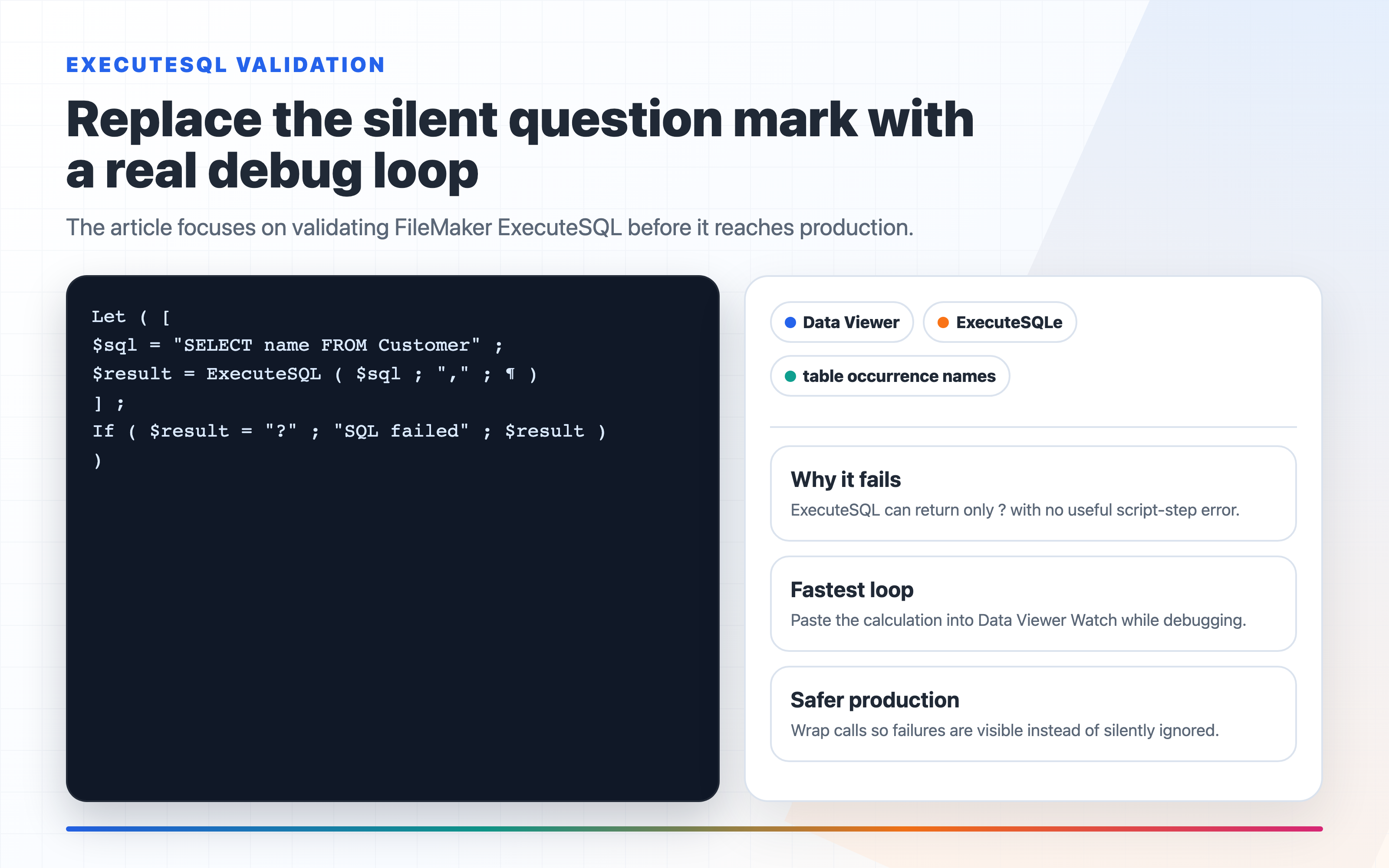
ExecuteSQL in FileMaker is one of those functions that either works perfectly or gives you a ? and nothing else. In older workflows, there is no error code, no line number, and no useful message from ExecuteSQL() itself. Just a question mark where your data should be.
I've spent more time than I care to admit staring at that ?, working backwards through a query to find a misquoted field name or a missing space before a keyword. The good news is there are ways to validate ExecuteSQL before it bites you in production.
In FM Dojo, I treat ExecuteSQL debugging as two separate jobs: prove the SQL shape in SQL Fiddle, then review the FileMaker implementation around it in the Code Editor or AI Chat. SQL Fiddle helps isolate the query. AI Chat and Code Editor help check the surrounding Set Variable, parameter order, result handling, and version assumptions that usually decide whether the query survives in a real file.
Why ExecuteSQL Fails Silently
FileMaker's ExecuteSQL() function doesn't throw errors the way a script step does. When the query fails, it returns ?. That's it. There's no Get(LastError) equivalent for SQL. This makes debugging harder than it needs to be — especially when you're working with complex joins, subqueries, or dynamic field references.
The most common culprits:
- Field names with spaces — must be wrapped in double quotes:
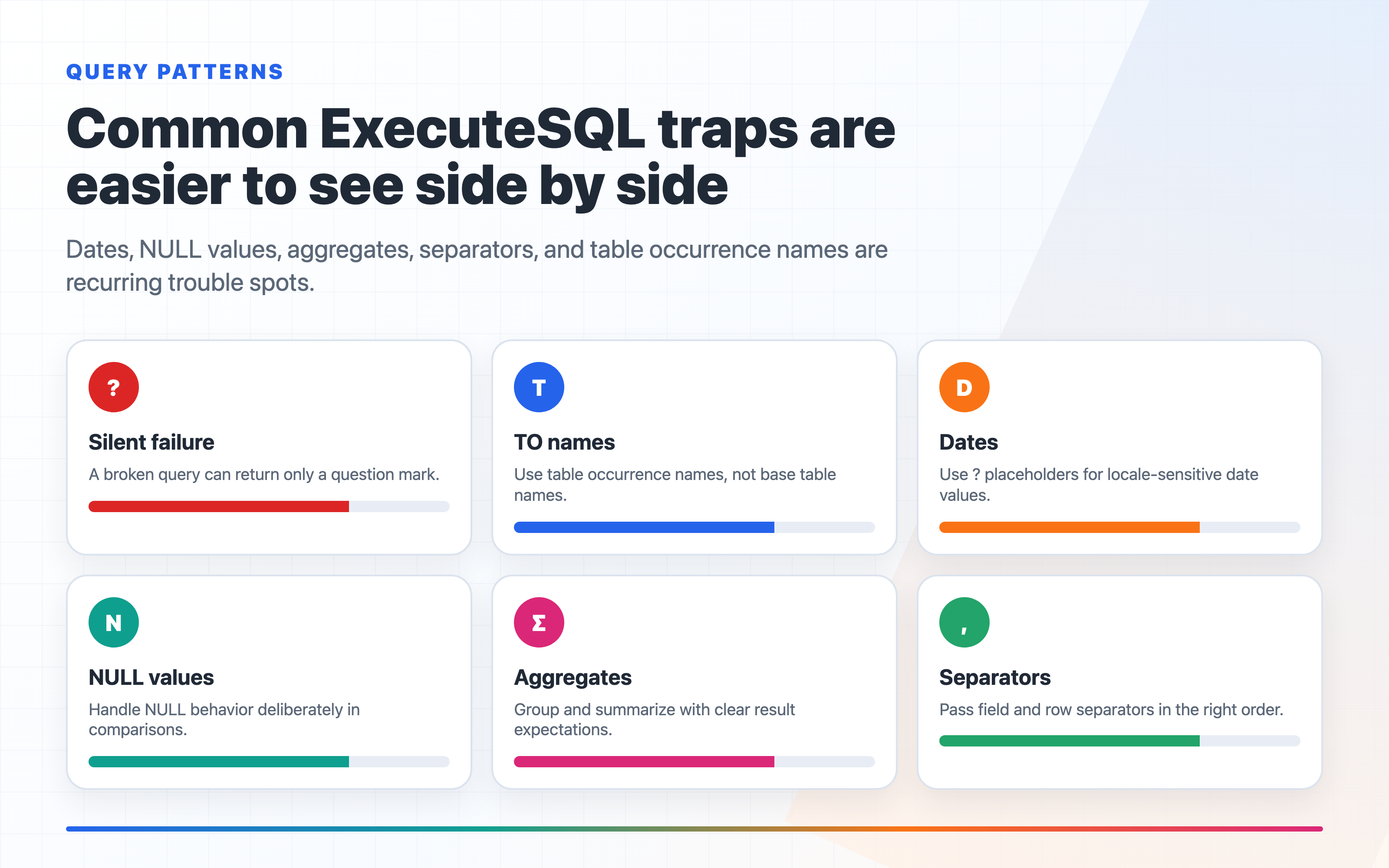
"First Name"notFirst Name - Table occurrence names — you're querying the table occurrence, not the base table name
- Missing separators — the second and third parameters of
ExecuteSQL()are the field separator and row separator; forgetting them or mixing up the order breaks everything - Single quotes inside string literals — you need to escape them
A query that looks right can fail because of one invisible character.
Use ExecuteSQLe in FileMaker 2024 and Newer
If you are on FileMaker Pro 21.1.1 or newer, use ExecuteSQLe while debugging. That function originated in version 21.1.1, which is the FileMaker 2024 release line. It is not a FileMaker 2025-only feature.
ExecuteSQLe has the same parameters as ExecuteSQL, but when parsing or execution fails it returns the question mark plus an actual SQL error:
? ERROR: FQL0007/(1:7): The column named "Title" does not exist in any table in the column reference's scope.
That makes the Data Viewer much more useful. Instead of watching this:
ExecuteSQL ( $sql ; "," ; ¶ )
watch this while you debug:
ExecuteSQLe ( $sql ; "," ; ¶ )
Once the query is stable, you can either keep ExecuteSQLe if your deployment target is FileMaker 2024 version 21.1.1 or newer, or switch back to ExecuteSQL if the file still needs to run on older clients.
How to Validate ExecuteSQL in FileMaker
The most reliable method is to break the query into a variable and test it in isolation before embedding it in a calculation or script.
Step 1: Build the query in a variable
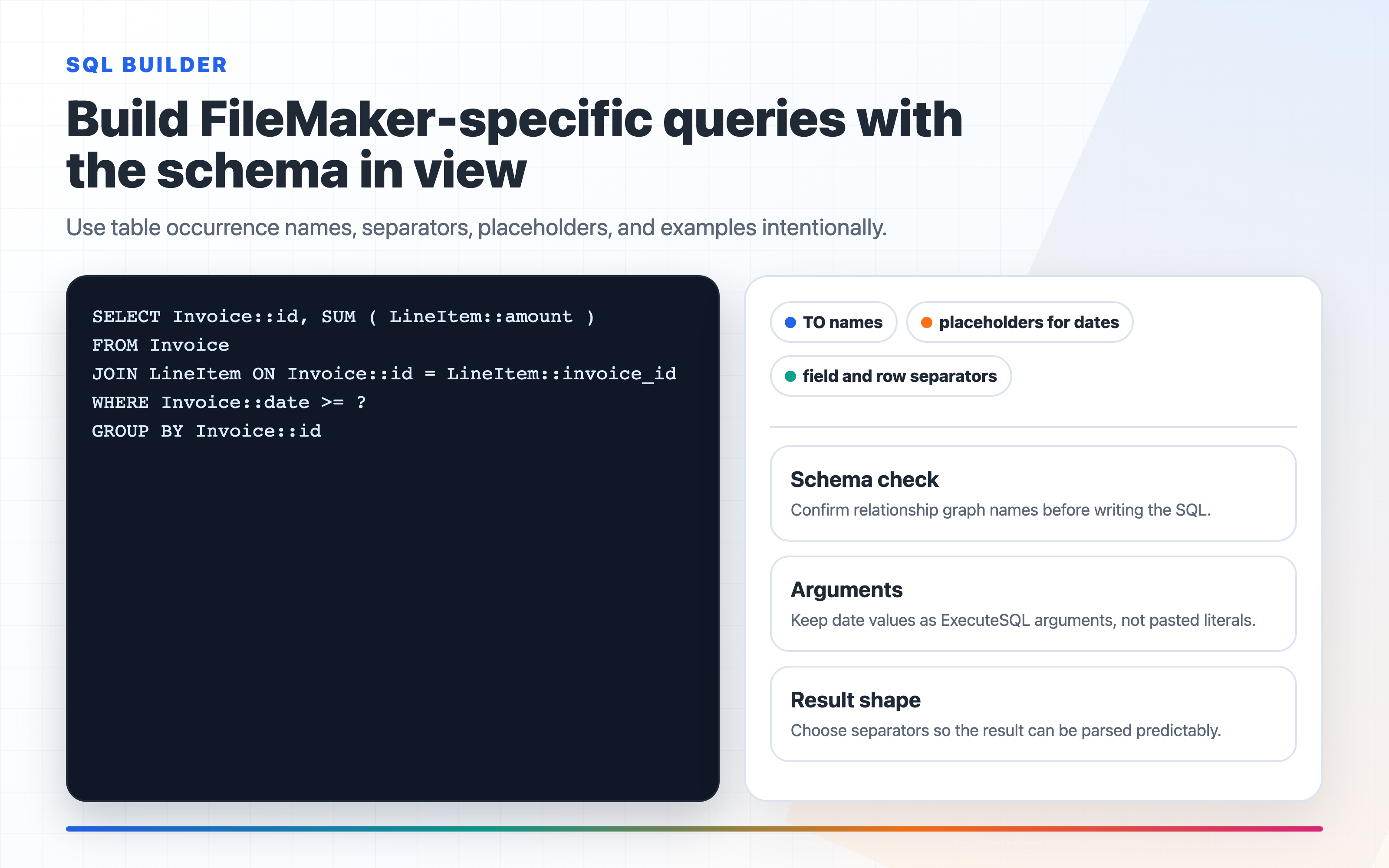
Set Variable [ $sql ; Value:
  "SELECT \"InvoiceID\", \"Total\"" &
  " FROM Invoices" &
  " WHERE \"Status\" = 'Open'"
]
Building SQL as a concatenated string means you can inspect it mid-script with a Show Custom Dialog or Data Viewer.
Step 2: Test it in the Data Viewer
Open the Data Viewer (Tools → Data Viewer) and paste your ExecuteSQL() call directly into the Watch tab. This is the fastest feedback loop you have in FileMaker — no scripts, no layouts, just the raw result.
ExecuteSQL ( $sql ; "," ; ¶ )
If you get ?, start isolating. Strip the query back to SELECT 1 FROM YourTable — if that returns a result, your table name is right. Add columns back one at a time.
Step 3: Validate field and table names
FileMaker's ExecuteSQL uses table occurrence names, not base table names. Open Database Design Report or use the Relationships graph to confirm the exact name. One underscore vs hyphen mismatch and you're back to ?.
Step 4: Handle the result defensively
Always wrap ExecuteSQL calls in an If check:
If ( ExecuteSQL ( $sql ; "" ; "" ) = "?" ;
  "Query failed" ;
  ExecuteSQL ( $sql ; "," ; ¶ )
)
This at least tells you something went wrong rather than silently displaying a ? to your users.
Use FM Dojo's SQL Fiddle to Write, Generate, and Validate
The workflow above works, but it's slow. A faster option is FM Dojo's SQL Fiddle, which lets you do the whole thing in one place — without opening FileMaker at all.
The workflow looks like this:
- Describe your table — tell the AI what fields you need and it generates the table structure for you
- Write your SQL — draft your query against that structure with syntax highlighting and FileMaker-aware autocomplete
- Validate it — run the query and see the result immediately, with clear error messages instead of
?
This is useful at every stage. When you're starting a new query from scratch, you're not guessing at field names or table structures — you define them and write against them. When you're debugging an existing query, you paste it in, reproduce the failure, and fix it without touching your live database.
It's particularly useful for the parts of ExecuteSQL that aren't well documented, like aggregate functions, date formatting, and the behavior of NULL values.
Once the query works, move the surrounding FileMaker expression into FM Dojo's Code Editor or AI Chat and ask for a narrow review: "Check this ExecuteSQL calculation for parameter order, quoting, FileMaker version compatibility, and defensive handling of ? results." That keeps the product step tied to the actual developer risk instead of treating SQL validation as a generic text problem.
Common ExecuteSQL Patterns That Trip People Up
Dates — use ? placeholders instead of placing dates directly in the SQL string. FileMaker date formats are locale-dependent, and a date literal that works on one machine can fail or mismatch on another. Keep the SQL stable and pass the actual date as an ExecuteSQL argument:
ExecuteSQL (
  "SELECT \"InvoiceID\" FROM Invoices WHERE \"InvoiceDate\" > ?" ;
  "," ; ¶ ;
  $startDate
)
The ? in the query is replaced by the next argument after the row separator. If you need two dates, use two placeholders and pass two values in the same order: WHERE "InvoiceDate" BETWEEN ? AND ? followed by $startDate ; $endDate.
Nulls — WHERE "Field" = '' won't catch NULL values. Use IS NULL or IS NOT NULL.
Concatenation — there's no CONCAT() function. Use ||:
SELECT "FirstName" || ' ' || "LastName" FROM Contacts
COUNT DISTINCT — supported, but the syntax trips people up:
SELECT COUNT(DISTINCT "CustomerID") FROM Orders
The FileMaker SQL reference covers the basics, but there are a lot of gaps. Testing in a safe environment before deploying saves you from silent failures in front of users.
Related technical notes from FM Dojo
Three FM Dojo tools are useful when you are working through this kind of SQL problem:
SQL Fiddle — build a representative schema, run the query outside production, and copy the final statement back as an ExecuteSQL() calculation.
FM Script Autocomplete in the Code Editor — write the surrounding script faster, including the Set Variable and result-checking steps around the SQL call.
Demo Data Generator — create test rows for edge cases like NULL values, empty strings, apostrophes in names, and date ranges before the query touches production data.